Self-Hosting Firecrawl on Ubuntu 25.04 with Docker Compose
- Steve Scargall
- Ai
- April 22, 2026
Modern AI agents — Claude Code, Codex, OpenClaw, Hermes-Agent, and custom LangChain pipelines — need a way to read the web. Not raw HTML full of navigation debris, cookie banners, and JavaScript noise, but clean structured text that a language model can actually reason about. Firecrawl is the missing piece: an open-source web scraping and crawling API that fetches any URL and returns clean Markdown, ready to drop straight into a context window or a RAG pipeline.
When you’re building AI-powered applications, calling a third-party scraping service creates several problems. Every page your agent reads costs API credits. Content passes through infrastructure you don’t control. Rate limits kick in at the worst possible moment mid-workflow. And for enterprise use cases, sending your agent’s browsing activity to an external service may not be acceptable at all. Self-hosting Firecrawl solves all of this: your agent calls a local endpoint, latency is measured in milliseconds rather than round-trip network time, and your data never leaves your own infrastructure.
I will use FireCrawl with my Hermes-Agent to build Agent Teams. We will follow the FireCrawl Self Hosting instructions and make a few changes (improvement?) along the way for my environment.
The official docker-compose.yaml defaults to building all five services from source, but it ships with commented-out directives pointing to pre-built images on the GitHub Container Registry (GHCR). Switching to those images means you can run the full stack without cloning the monorepo, installing pnpm, or waiting through a multi-minute build. All you need are two files and about ten minutes.
What Self-Hosting Supports (and Doesn’t)
Read this before investing time in the install. Some FireCrawl cloud features are not available in self-hosted mode.
| Feature | Cloud | Self-hosted |
|---|---|---|
/v1/scrape, /v1/crawl, /v1/map | ✅ | ✅ |
| JavaScript rendering (Playwright) | ✅ | ✅ |
| Screenshots | ✅ | ✅ |
/v1/extract (AI extraction) | ✅ | ✅ requires an LLM configured (see Step 11) |
/v1/search | ✅ | ✅ requires SearXNG configured |
| Local LLMs via Ollama or vLLM | ❌ | ✅ Experimental |
/agent and /browser endpoints | ✅ | ❌ Not supported |
| Fire-engine (IP rotation, bot evasion) | ✅ | ❌ Not available |
If you need /agent, /browser, or Fire-engine, the cloud offering is the right choice.
What You’ll End Up With
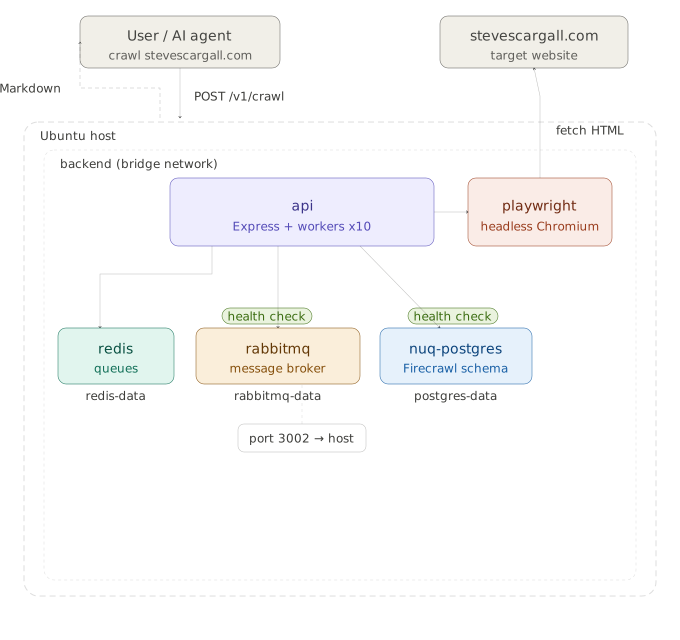
Five containers on a shared private Docker network, with the API Service running on port 3002 as the only externally visible service:
Installation Steps at a Glance
- Step 1 — Install Docker Engine
- Step 2 — Create Your Working Directory
- Step 3 — Create
docker-compose.yaml - Step 4 — Create
.env - Step 5 — Authenticate with GHCR (If Required)
- Step 6 — Pull the Images
- Step 7 — Start the Stack
- Step 8 — Verify the API
- Step 9 — Run a Full Smoke Test
- Step 10 — Operational Tips (Optional)
- Step 11 — Connect a Local or Remote LLM (Optional)
Prerequisites
- Ubuntu 25.04 (Use any supported version)
- 8 GB RAM and 4 CPU cores minimum
jqinstalled (sudo apt-get install -y jq)- A GitHub account and API key (only needed if GHCR image pulls fail with 401 — covered in Step 5)
How Do You Want to Install This?
Before running a single command, decide which path suits you.
Option 1 — Install manually (this guide is intended for humans)
Follow Steps 1–11 below. You’ll run each command yourself, read the output, and work through any issues using the troubleshooting section. Choose this if you want to understand what every piece does, you’re new to Docker Compose, or you simply prefer hands-on control.
Option 2 — Let an AI agent install it for you
A separate task file, firecrawl-INSTALL.md , is written specifically for AI coding agents. Read this first to ensure you’re happy running it on your system. It describes the installation as a structured sequence of phases with explicit success criteria and pre-baked recovery steps for every known failure mode. Point your agent at it and let it handle the shell work while you supervise.
This approach has been tested with Claude Code, but any agent that can execute bash commands and read a Markdown task file will do. Copy and Paste the following prompt into your AI agent and let it run. It may ask you questions about your environment to help configure the installation.
Read the installation task file from https://stevescargall.com/blog/2026/04/firecrawl-self-hosted-install/firecrawl-INSTALL.md

Then install Firecrawl on this Ubuntu 25.04 host by executing each phase in order exactly as described.
Validate every success criterion before moving to the next phase. If a phase fails, follow the recovery
instructions in the file before retrying. DO NOT skip ahead. Report the final installation summary when
complete. Ask the user questions about their environment and system setup and make changes to the
installation steps, `docker-compose.yml`, and `.env` as needed to the result is a perfectly working
Firecrawl installation. If the user has an LLM running locally or they prefer to use API keys, update
`.env` with the settings for that. If they don't have an LLM do not prompt them to install one.
Both options produce an identical running stack. The agent path is faster for experienced operators who trust their agent; the manual path is better for first-time installs where understanding the system matters.
Step 1 — Install Docker Engine
Ubuntu ships Docker in its universe repository, but Docker’s own repo is more current and includes the Compose plugin.
Use the official Install Docker Engine on Ubuntu documentation for the latest instructions.
Add your user to the docker group so you don’t need sudo for every command:
sudo usermod -aG docker $USER
newgrp docker
Confirm it worked:
docker compose version
# Docker Compose version v2.x.x
Step 2 — Create Your Working Directory
You do not need to clone the Firecrawl monorepo . Everything you need fits in two files.
mkdir -p ~/firecrawl
cd ~/firecrawl
Step 3 — Create docker-compose.yaml
Create ~/firecrawl/docker-compose.yaml with the content below. This is the upstream file
with several fixes applied on top of the build → image swap the comments already suggest. The changes from upstream are documented in the What changed list after the file.
name: firecrawl

x-common-service: &common-service
  # Switched from: build: apps/api
  image: ghcr.io/firecrawl/firecrawl:latest
  ulimits:
    nofile:
      soft: 65535
      hard: 65535
  networks:
    - backend
  extra_hosts:
    - "host.docker.internal:host-gateway"
  logging:
    driver: "json-file"
    options:
      max-size: "10m"
      max-file: "3"
      compress: "true"

x-common-env: &common-env
  PORT: ${INTERNAL_PORT:-3002}
  HOST: ${HOST:-0.0.0.0}
  REDIS_URL: ${REDIS_URL:-redis://redis:6379}
  REDIS_RATE_LIMIT_URL: ${REDIS_RATE_LIMIT_URL:-redis://redis:6379}
  PLAYWRIGHT_MICROSERVICE_URL: ${PLAYWRIGHT_MICROSERVICE_URL:-http://playwright-service:3000/scrape}
  USE_DB_AUTHENTICATION: ${USE_DB_AUTHENTICATION:-false}
  OPENAI_API_KEY: ${OPENAI_API_KEY:-}
  OLLAMA_BASE_URL: ${OLLAMA_BASE_URL:-}
  MODEL_NAME: ${MODEL_NAME:-}
  MODEL_EMBEDDING_NAME: ${MODEL_EMBEDDING_NAME:-}
  BULL_AUTH_KEY: ${BULL_AUTH_KEY:-}
  LOGGING_LEVEL: ${LOGGING_LEVEL:-info}
  PROXY_SERVER: ${PROXY_SERVER:-}
  PROXY_USERNAME: ${PROXY_USERNAME:-}
  PROXY_PASSWORD: ${PROXY_PASSWORD:-}
  # Boolean flags must have an explicit true/false default.
  # An empty string causes Zod config validation to throw and crash the API on startup.
  BLOCK_MEDIA: ${BLOCK_MEDIA:-false}
  ALLOW_LOCAL_WEBHOOKS: ${ALLOW_LOCAL_WEBHOOKS:-false}
  SEARXNG_ENDPOINT: ${SEARXNG_ENDPOINT:-}
  POSTHOG_API_KEY: ${POSTHOG_API_KEY:-}
  POSTHOG_HOST: ${POSTHOG_HOST:-}
  SLACK_WEBHOOK_URL: ${SLACK_WEBHOOK_URL:-}
  LLAMAPARSE_API_KEY: ${LLAMAPARSE_API_KEY:-}
  MAX_CPU: ${MAX_CPU:-0.8}
  MAX_RAM: ${MAX_RAM:-0.8}
  POSTGRES_HOST: nuq-postgres
  POSTGRES_PORT: 5432
  POSTGRES_DB: ${POSTGRES_DB:-firecrawl}
  POSTGRES_USER: ${POSTGRES_USER:-firecrawl}
  POSTGRES_PASSWORD: ${POSTGRES_PASSWORD:-firecrawl}
  # Required by extract-worker — the API harness will crash without this.
  # Must use the same credentials as RABBITMQ_DEFAULT_USER/PASS below.
  NUQ_RABBITMQ_URL: amqp://${RABBITMQ_USER:-firecrawl}:${RABBITMQ_PASSWORD:-firecrawl}@rabbitmq:5672

services:
  playwright-service:
    # Switched from: build: apps/playwright-service-ts
    image: ghcr.io/firecrawl/playwright-service:latest
    environment:
      PORT: 3000
      PROXY_SERVER: ${PROXY_SERVER:-}
      PROXY_USERNAME: ${PROXY_USERNAME:-}
      PROXY_PASSWORD: ${PROXY_PASSWORD:-}
      ALLOW_LOCAL_WEBHOOKS: ${ALLOW_LOCAL_WEBHOOKS:-false}
      BLOCK_MEDIA: ${BLOCK_MEDIA:-false}
      MAX_CONCURRENT_PAGES: ${CRAWL_CONCURRENT_REQUESTS:-10}
    networks:
      - backend
    # Sized for 8 GB / 4 vCPU. Reduce for smaller hosts (e.g. cpus: 1.0, mem_limit: 1G).
    cpus: 2.0
    mem_limit: 4G
    memswap_limit: 4G
    logging:
      driver: "json-file"
      options:
        max-size: "10m"
        max-file: "3"
        compress: "true"
    tmpfs:
      - /tmp/.cache:noexec,nosuid,size=512m

  api:
    <<: *common-service
    environment:
      <<: *common-env
    depends_on:
      redis:
        condition: service_started      # Redis retries in-process; started is sufficient
      playwright-service:
        condition: service_started      # only called at job execution time, not startup
      nuq-postgres:
        condition: service_healthy      # pg_isready — waits for initdb + schema to complete
      rabbitmq:
        condition: service_healthy      # rabbitmq-diagnostics ping — waits for broker ready
    ports:
      - "${PORT:-3002}:${INTERNAL_PORT:-3002}"
    command: ["node", "dist/src/harness.js", "--start-docker"]
    # Sized for 8 GB / 4 vCPU. Reduce for smaller hosts (e.g. cpus: 1.5, mem_limit: 1536M).
    cpus: 4.0
    mem_limit: 8G
    memswap_limit: 8G

  redis:
    image: redis:alpine
    networks:
      - backend
    volumes:
      - redis-data:/data
    cpus: 0.25
    mem_limit: 256M
    memswap_limit: 256M
    logging:
      driver: "json-file"
      options:
        max-size: "10m"
        max-file: "3"
        compress: "true"

  rabbitmq:
    image: rabbitmq:3-management
    networks:
      - backend
    volumes:
      - rabbitmq-data:/var/lib/rabbitmq
    environment:
      RABBITMQ_DEFAULT_USER: ${RABBITMQ_USER:-firecrawl}
      RABBITMQ_DEFAULT_PASS: ${RABBITMQ_PASSWORD:-firecrawl}
    cpus: 0.5
    # 512M minimum — RabbitMQ flow-control watermark is 40% of available memory.
    # At 256M it would alarm immediately and throttle all message publishers.
    mem_limit: 512M
    memswap_limit: 512M
    healthcheck:
      test: ["CMD", "rabbitmq-diagnostics", "ping"]
      interval: 5s
      timeout: 10s
      retries: 10
      start_period: 30s
    logging:
      driver: "json-file"
      options:
        max-size: "10m"
        max-file: "3"
        compress: "true"

  nuq-postgres:
    # Switched from: build: apps/nuq-postgres
    image: ghcr.io/firecrawl/nuq-postgres:latest
    # Required: sets cron.database_name before initdb runs so pg_cron can install
    # into the 'firecrawl' database. Without this, the init script exits with
    # code 3, killing the container and preventing the API health check from passing.
    command: postgres -c cron.database_name=${POSTGRES_DB:-firecrawl}
    environment:
      POSTGRES_DB: ${POSTGRES_DB:-firecrawl}
      POSTGRES_USER: ${POSTGRES_USER:-firecrawl}
      POSTGRES_PASSWORD: ${POSTGRES_PASSWORD:-firecrawl}
    networks:
      - backend
    volumes:
      - postgres-data:/var/lib/postgresql/data
    cpus: 0.5
    mem_limit: 512M
    memswap_limit: 512M
    healthcheck:
      test: ["CMD-SHELL", "pg_isready -U ${POSTGRES_USER:-firecrawl} -d ${POSTGRES_DB:-firecrawl}"]
      interval: 5s
      timeout: 5s
      retries: 10
      start_period: 30s
    logging:
      driver: "json-file"
      options:
        max-size: "10m"
        max-file: "3"
        compress: "true"

networks:
  backend:
    driver: bridge

volumes:
  redis-data:
  postgres-data:
  rabbitmq-data:
What changed from the upstream file:
build:replaced withimage:on all three GHCR services (as the upstream comments suggest)- Named volumes added for Redis, Postgres, and RabbitMQ so data survives restarts
NUQ_RABBITMQ_URLadded tox-common-env— required byextract-worker, omitting it crashes the entire API harnessBLOCK_MEDIAandALLOW_LOCAL_WEBHOOKSgiven explicitfalsedefaults — empty strings cause aZodErrorcrash at startupcommand: postgres -c cron.database_name=firecrawladded tonuq-postgres— without this, thepg_croninit script exits with code 3 and kills the container- Health checks added to
rabbitmq(rabbitmq-diagnostics ping) andnuq-postgres(pg_isready);apidepends_onupgraded tocondition: service_healthyfor both — prevents the startup race conditions where workers crash trying to connect before services are ready rabbitmqmemory limit raised to 512M — its flow-control threshold is 40% of available memory; 256M triggers constant alarms- Resource limits sized for 8 GB / 4 vCPU host with comments showing smaller-host values
Step 4 — Create .env
Create ~/firecrawl/.env. The passwords marked “change me” must be set to unique values before starting. If you run models locally or cloud hosted, you will need to uncomment and update the “AI features” section.
# ===== Required =====
PORT=3002
HOST=0.0.0.0
INTERNAL_PORT=3002
USE_DB_AUTHENTICATION=false
LOGGING_LEVEL=info

# ===== Passwords — change all three =====
# Generate strong values: openssl rand -hex 32
BULL_AUTH_KEY=change-this-to-a-long-random-string

POSTGRES_DB=firecrawl
POSTGRES_USER=firecrawl
POSTGRES_PASSWORD=firecrawl_secret_change_me

# RABBITMQ_PASSWORD must match in both the rabbitmq service and NUQ_RABBITMQ_URL.
RABBITMQ_USER=firecrawl
RABBITMQ_PASSWORD=firecrawl_rabbitmq_change_me

# ===== Boolean flags — must be explicit true/false, never empty =====
# Empty string causes a ZodError crash in the API container.

# Block images/video in Playwright fetches (saves bandwidth behind a proxy)
BLOCK_MEDIA=false

# Allow webhook callbacks to internal network addresses (localhost, 192.168.x.x, etc.)
# false: protects against SSRF attacks — use when exposed to untrusted callers
# true: use when you're the sole caller and need callbacks to local services
ALLOW_LOCAL_WEBHOOKS=false

# ===== Optional: AI features =====
# Enables /extract, JSON format on scrape, summary format.
# Uncomment ONE block only — see Step 11 for full configuration guide.

# Option A — OpenAI cloud
# OPENAI_API_KEY=sk-...

# Option B — Ollama on the same host as Firecrawl
# OLLAMA_BASE_URL=http://host.docker.internal:11434/api
# MODEL_NAME=qwen3:32b
# MODEL_EMBEDDING_NAME=nomic-embed-text

# Option C — vLLM on the same host as Firecrawl
# host.docker.internal resolves to the Docker host from inside containers.
# OPENAI_BASE_URL=http://host.docker.internal:8000/v1
# OPENAI_API_KEY=placeholder    # required non-empty; vLLM ignores the value
# MODEL_NAME=your-model-id      # use the "id" field from GET /v1/models

# Option D — vLLM on a remote host
# Use the hostname/IP directly — host.docker.internal only reaches this machine.
# Verify first: curl -s http://<remote-host>:<port>/v1/models | jq '.data[].id'
# OPENAI_BASE_URL=http://dgx-spark001:8000/v1
# OPENAI_API_KEY=placeholder
# MODEL_NAME=gemma4-31B-nvfp4

# ===== Optional: Proxy =====
# PROXY_SERVER=http://10.0.0.1:3128
# PROXY_USERNAME=
# PROXY_PASSWORD=

# ===== Optional: SearXNG for /search endpoint =====
# SEARXNG_ENDPOINT=http://your-searxng-host
Security:
BULL_AUTH_KEYprotects the queue admin UI.POSTGRES_PASSWORDandRABBITMQ_PASSWORDprotect the data stores. Generate all three withopenssl rand -hex 32. Do not use the defaults in any non-local deployment.
Step 5 — Authenticate with GHCR (If Required)
The three Firecrawl images are public on GHCR (GitHub Container Registry), but rate limits or temporary access controls can cause 401 Unauthorized on pulls. If docker compose pull fails, authenticate with a GitHub Personal Access Token (PAT):
- Go to GitHub → Settings → Developer settings → Personal access tokens → Fine-grained tokens and create a token with read:packages scope.
- Log in:
echo $YOUR_PAT | docker login ghcr.io -u YOUR_GITHUB_USERNAME --password-stdin
Docker stores the credentials in ~/.docker/config.json — you only need to do this once per machine.
Step 6 — Pull the Images
cd ~/firecrawl
docker compose pull
Expect 3-4 GB of downloads on first run. The Playwright image is the largest — it bundles a full Chromium installation.
Step 7 — Start the Stack
docker compose up -d
Give it 30–60 seconds for the health checks to pass, then confirm all five containers are running:
docker ps -a
Expected output — both nuq-postgres and rabbitmq must show (healthy) before the API is permitted to start:
CONTAINER ID   IMAGE                                         COMMAND                  CREATED              STATUS                        PORTS                                                                  NAMES
1afb0174a933   ghcr.io/firecrawl/firecrawl:latest            "docker-entrypoint.s…"   About a minute ago   Up 57 seconds                 0.0.0.0:3002->3002/tcp, [::]:3002->3002/tcp, 8080/tcp                  firecrawl-api-1
5e464ffddaf2   redis:alpine                                  "docker-entrypoint.s…"   About a minute ago   Up About a minute             6379/tcp                                                               firecrawl-redis-1
8989a95bbd54   rabbitmq:3-management                         "docker-entrypoint.s…"   About a minute ago   Up About a minute (healthy)   4369/tcp, 5671-5672/tcp, 15671-15672/tcp, 15691-15692/tcp, 25672/tcp   firecrawl-rabbitmq-1
6109888dc3a7   ghcr.io/firecrawl/playwright-service:latest   "docker-entrypoint.s…"   About a minute ago   Up About a minute                                                                                    firecrawl-playwright-service-1
a6bc0e6c5fa2   ghcr.io/firecrawl/nuq-postgres:latest         "docker-entrypoint.s…"   About a minute ago   Up About a minute (healthy)   5432/tcp                                                               firecrawl-nuq-postgres-1
If any container shows Exited or Restarting, check that service’s logs directly:
docker logs firecrawl-api-1
docker logs firecrawl-nuq-postgres-1
To watch all services stream live (useful during first boot):
docker compose logs -f --tail=100
Redis kernel warning: Redis may log
WARNING Memory overcommit must be enabled. Fix it on the host:sudo sysctl vm.overcommit_memory=1 # immediate echo 'vm.overcommit_memory = 1' | sudo tee -a /etc/sysctl.conf # permanentThen
docker compose restart redisto clear the warning from future logs.
Step 8 — Verify the API
Test that the API is accepting requests:
curl -s http://localhost:3002/v1/scrape \
  -H 'Content-Type: application/json' \
  -d '{"url": "https://stevescargall.com", "formats": ["markdown"]}' | jq .success
Expected: true
Check the Bull queue admin UI in a browser — this confirms workers are running and the queue system is healthy:
http://<your-server-ip>:3002/admin/<YOUR_BULL_AUTH_KEY>/queues
On a headless server, use SSH port forwarding:
ssh -L 3002:localhost:3002 user@your-server
# then open http://localhost:3002/admin/<KEY>/queues locally
Step 9 — Run a Full Smoke Test
Synchronous scrape (fastest, returns immediately):
curl -s -X POST http://localhost:3002/v1/scrape \
  -H 'Content-Type: application/json' \
  -d '{"url": "https://stevescargall.com", "formats": ["markdown"]}' | jq .data.markdown | head -20
Async crawl (follows links, returns a job ID):
JOB=$(curl -s -X POST http://localhost:3002/v1/crawl \
  -H 'Content-Type: application/json' \
  -d '{"url": "https://stevescargall.com", "limit": 5}' | jq -r .id)

echo "Job ID: $JOB"
Poll for results:
curl -s http://localhost:3002/v1/crawl/$JOB | jq '{status: .status, pages: (.data | length)}'
A successful crawl response looks like:
{
  "status": "completed",
  "pages": 5
}
Step 10 — Operational Tips (Optional)
Pin Docker image tags. Running latest means any upstream push can silently break your stack on the next docker compose pull. Once the stack is working, check the GHCR packages page
and pin all three GHCR images to matching release tags:
image: ghcr.io/firecrawl/firecrawl:v1.x.x
Updating. Pull new images and restart only changed containers:
docker compose pull
docker compose up -d --remove-orphans
Resource limits. The compose file is sized for 8 GB / 4 vCPU. Always leave ~500 MB and half a CPU free for the host OS. If running on a smaller VM, reduce cpus and mem_limit / memswap_limit on the api and playwright-service containers — comments in the compose file show example smaller values.
Security. Port 3002 has no authentication (USE_DB_AUTHENTICATION=false). If you need external access, put it behind a reverse proxy (Nginx, Caddy, Traefik) with IP allowlisting or basic auth.
Log rotation is already configured in the compose file — json-file driver with 10 MB rolling files, 3 files per container.
Wipe and reset (destroys all crawl data):
docker compose down -v   # removes containers AND named volumes
docker compose up -d     # re-initializes from scratch
Step 11 — Connect a Local or Remote LLM (Optional)
This step enables /v1/extract, JSON format on scrape, summary format, and branding format. Without an LLM configured, basic scraping and crawling work fine.
Set one option at a time in .env — mixing providers is not supported.
Discover your model name first
For any vLLM or Ollama endpoint, confirm the exact model ID before editing .env:
# vLLM
curl -s http://<host>:<port>/v1/models | jq '.data[].id'

# Ollama
curl -s http://localhost:11434/api/tags | jq '.models[].name'
The id (vLLM) or name (Ollama) is what you set as MODEL_NAME. For vLLM, use the id field — not root, which is the base model name and won’t be recognised by the server.
Example against a remote vLLM host:
{
  "object": "list",
  "data": [
    {
      "id": "gemma4-31B-nvfp4",
      "root": "nvidia/Gemma-4-31B-IT-NVFP4",
      "max_model_len": 65536
    }
  ]
}
Use gemma4-31B-nvfp4 (the id), not nvidia/Gemma-4-31B-IT-NVFP4 (the root).
Option A — OpenAI cloud
OPENAI_API_KEY=sk-...
Option B — Ollama on the same host
host.docker.internal resolves to the Docker host from inside containers, wired by the extra_hosts directive in x-common-service.
OLLAMA_BASE_URL=http://host.docker.internal:11434/api
MODEL_NAME=qwen3:32b
MODEL_EMBEDDING_NAME=nomic-embed-text
Option C — vLLM on the same host
OPENAI_BASE_URL=http://host.docker.internal:8003/v1
OPENAI_API_KEY=placeholder    # vLLM ignores this; must be non-empty
MODEL_NAME=your-model-id
Option D — vLLM on a remote host
host.docker.internal only resolves to the local Docker host — it cannot reach other machines on the network. Use the remote hostname or IP directly.
OPENAI_BASE_URL=http://aitopatom-3da2:8003/v1
OPENAI_API_KEY=placeholder    # vLLM ignores this; must be non-empty
MODEL_NAME=gemma4-31B-nvfp4
Apply the change
After editing .env, restart only the API container:
docker compose up -d api
Confirm the variable is active inside the container:
docker exec firecrawl-api-1 env | grep OPENAI_BASE_URL
Troubleshooting
NUQ_RABBITMQ_URL is not configured — API shuts down immediately
extract-worker Error: NUQ_RABBITMQ_URL is not configured
✗ extract-worker 11.4s (1)
── Shutting down ──
The extract-worker requires this variable to connect to RabbitMQ. The harness treats any worker exit as fatal and shuts down everything. Ensure your .env has RABBITMQ_USER and RABBITMQ_PASSWORD set, and that the NUQ_RABBITMQ_URL line is present in x-common-env in the compose file. Then do a full clean restart:
docker compose down -v && docker compose up -d
connect ECONNREFUSED <ip>:5672 — nuq-worker crashes on startup
RabbitMQ took longer than expected to boot and the workers connected before it was ready. Verify the compose file has the rabbitmq-diagnostics ping health check and condition: service_healthy in the api depends_on. If both are present, simply restart:
docker compose up -d
getaddrinfo EAI_AGAIN nuq-postgres — API crashes on startup
Same race condition as above, but for Postgres. Verify the compose file has the pg_isready health check on nuq-postgres and condition: service_healthy in the api depends_on. On a first boot with a fresh volume this can also occur if initdb is slow — the start_period: 30s on the health check should absorb this. If the issue persists:
docker compose down -v && docker compose up -d
nuq-postgres exits with code 3
The pg_cron init script failed because cron.database_name wasn’t set before Postgres started. Verify the compose file has command: postgres -c cron.database_name=${POSTGRES_DB:-firecrawl} on the nuq-postgres service, then wipe and restart:
docker compose down -v && docker compose up -d
ZodError on ALLOW_LOCAL_WEBHOOKS or BLOCK_MEDIA
ZodError: Invalid option: expected one of "true"|...|"false"|...
  path: ["ALLOW_LOCAL_WEBHOOKS"]
These boolean variables cannot be empty strings. Ensure your .env contains:
ALLOW_LOCAL_WEBHOOKS=false
BLOCK_MEDIA=false
extract-worker killed — exit code 137
The container ran out of memory. Exit code 137 means the Linux OOM killer sent SIGKILL. Increase mem_limit on the api service, or expand the VM’s RAM. 8 GB total is the recommended minimum.
relation "..." does not exist in API logs
The Postgres schema doesn’t match the API image version — usually from reusing a volume after pulling a newer image. Reset:
docker compose down -v && docker compose up -d
Supabase errors in logs
ERROR - Supabase client is not configured
WARN  - You're bypassing authentication
Expected and harmless in self-hosted mode. Supabase is only used in the cloud offering. USE_DB_AUTHENTICATION=false is the correct setting.
401/403 on GHCR pulls
Authenticate with a GitHub PAT as described in Step 5.
ALLOW_LOCAL_WEBHOOKS — when to enable it
When you kick off an async crawl, you can provide a webhook URL that Firecrawl calls on completion. ALLOW_LOCAL_WEBHOOKS controls whether that URL can target internal network addresses (localhost, 192.168.x.x, etc.). The default false protects against SSRF — a caller could supply an internal URL and trick Firecrawl into probing your network. Set to true only when you’re the sole caller and need callbacks delivered to services on the same host or Docker network.